

This is Part 2 in a series of posts designed to get you from Zero to Mobile Hero. In the first post, we discussed setting up our iOS and Android applications and linking them to our Ruby on Rails web app. In this post, we will add native components to enhance the look and feel of our native mobile applications using Hotwire’s BridgeComponent.
The bridge component is the star of the show for Hotwire Native. It uses data attributes on HTML elements and snippets of JavaScript to create native components that enhance the look and feel of your apps. Under the hood, Hotwire Native uses JavaScript to send data to and from the native application. If you’re already using Stimulus, you will feel very comfortable in creating Bridge Components because the APIs are very similar. For our first bridge component, let’s convert our “heart” button to a native button. On our show page, we have a button that allows a user to add a spot to their favorites. On mobile, users are accustomed to having this button in the navigation bar.
To get started, we need to add the hotwire-native-bridge package to your application. If you’re all no-build like me, you can use importmap /bin/importmap pin @hotwired/stimulus @hotwired/hotwire-native-bridge. Otherwise, you can enter yarn add @hotwired/hotwire-native-bridge to add the package to your package.json file. Please note that Stimulus is a requirement. Next, create a JavaScript file at app/javascript/bridge/heart_controller.js. Again, this file naming scheme should be familiar to Stimulus users.
import { BridgeComponent, BridgeElement } from "@hotwired/hotwire-native-bridge"

export default class extends BridgeComponent {
  static component = "heart"

  connect() {
    super.connect()
    this.notifyBridgeOfConnect()
  }

  notifyBridgeOfConnect() {
    const bridgeElement = new BridgeElement(this.element)
    const checked = bridgeElement.bridgeAttribute("checked") == "true"

    this.send("connect", { checked }, () => {
      this.element.click()
    })
  }
}
The above class defines the component as a static string. This string is used on the native side to identify the component. In the HTML file we define the controller by setting the data attribute "controller" to "bridge" followed by two hyphens ("-") then the name of the component. e.g. data-controller=”bridge-heart”. We will need to track the button state and we can do this using the same data attributes. We set the bridge element checked value by setting data-bridge-checked. Similarly, we can use the prefix data-bridge to set other variables and retrieve them via bridgeElement.bridgeAttribute("name-of-attribute").
<%# locals: (spot:, css_class: nil, mobile_component: false) %>
<% if spot.favorited_by?(current_user) %>
 <%= link_to spot_favorite_path(spot, current_user.favorite_for(spot)), class: "#{css_class} text-red-500 hover:text-gray-300 cursor-pointer btn-heart",
   method: :delete, data:{ turbo_method: :delete, controller: mobile_component ? "bridge--heart" : nil, bridge_checked: false } do %>
   <%= inline_svg_tag("unlike.svg") %>
 <% end %>
<% else %>
 <%= link_to spot_favorites_path(spot), class: "#{css_class} text-gray-300 hover:text-red-500 cursor-pointer btn-heart",
             method: :post, data: { turbo_method: :post, controller: mobile_component ? "bridge--heart" : nil, bridge_checked: false } do %>
   <%= inline_svg_tag("like.svg") %>
 <% end %>
<% end %>
What else can the web side of a bridge component read and set?#
A bridge component keeps every Stimulus feature, such as targets, values and actions, because the BridgeComponent class extends a Stimulus controller. On top of that the reference documents five members of its own: static component, enabled, platformOptingOut, bridgeElement and send. A BridgeElement wraps any element and reads its data-bridge attributes.
The bridge components reference says, “The BridgeComponent class is an extension of a Stimulus Controller.” The heart in this post uses one attribute, data-bridge-checked. The reference lists these BridgeComponent and BridgeElement members:
| Name | What it does |
|---|---|
| static component | The name of the native component. It must match the native name exactly. |
| this.enabled | True when this version of the app supports the component and the platform has not opted out. |
| this. | True when the element opts out of the component on the current platform. Set data-controller-optout-ios or data-controller-optout-android to the controller identifier, such as bridge--heart. |
| this. | The controller's element, wrapped in a BridgeElement so it can read data-bridge attributes. |
| this. | Sends a message to the native component. The callback runs when the native side replies. |
| bridgeElement. | A BridgeElement reads data-bridge-title first, then aria-label, then the element's text or value. |
| bridgeElement. | True when data-bridge-disabled is "true" or names the current platform, "ios" or "android". |
| bridgeElement. | Writes or clears a data-bridge attribute from JavaScript. |
Check this.enabled before you call send(). The reference says it tells you whether the component is enabled and supported by the current version of the native app.
Targets, outlets and events work the same way inside a bridge component, and Two Tips for Reusable UI with Stimulus covers all three in plain Stimulus controllers.
The Android Bridge#
Back in Android Studio, we need to add the corresponding HeartComponent. We can create a new package under our main directory called bridge. Then create the HeartComponent file.
class HeartComponent(
   name: String,
   private val delegate: BridgeDelegate<HotwireDestination>
) : BridgeComponent<HotwireDestination>(name, delegate) {

   private val actionButtonItemId = 15
   private var actionButtonMenuItem: MenuItem? = null
   private val fragment: Fragment
       get() = delegate.destination.fragment
   private val toolbar: Toolbar?
       get() = fragment.view?.findViewById(dev.hotwire.navigation.R.id.toolbar)

   override fun onReceive(message: Message) {
       // Handle incoming messages based on the message `event`.
       when (message.event) {
           "connect" -> handleConnectEvent(message)
           else -> Log.w("HeartComponent", "Unknown event for message: $message")
       }
   }

   private fun handleConnectEvent(message: Message) {
       val data = message.data<MessageData>() ?: return

       val menu = toolbar?.menu ?: return
       val inflater = LayoutInflater.from(fragment.requireContext())
       val binding = HeartComponentBinding.inflate(inflater)
       val order = 999 // Show as the right-most button
       val text = if (data.checked) "Remove Heart" else "Heart"

       binding.button.apply {
           isActivated = data.checked
           setOnClickListener {
               performSubmit()
           }
       }

       menu.removeItem(actionButtonItemId)
       actionButtonMenuItem = menu.add(Menu.NONE, actionButtonItemId, order, text).apply {
           actionView = binding.root
           setShowAsAction(MenuItem.SHOW_AS_ACTION_ALWAYS)
       }
   }

   private fun performSubmit(): Boolean {
       return replyTo("connect")
   }

   // Use kotlinx.serialization annotations to define a serializable
   // data class that represents the incoming message.data json.
   @Serializable
   data class MessageData(
       val checked: Boolean
   )
}
Our HeartComponent finds the Toolbar and adds the heart as the last icon to the right. When pressed the button sends a reply to the WebView which results in the button being clicked. If you’re paying attention, you’ll notice that we’re creating a binding with HeartComponentBinding which requires a heart_component.xml file in the res/layouts directory.
<?xml version="1.0" encoding="utf-8"?>
<FrameLayout xmlns:android="http://schemas.android.com/apk/res/android"
    android:layout_width="wrap_content"
    android:layout_height="match_parent"
    xmlns:app="http://schemas.android.com/apk/res-auto"
    android:layout_gravity="end|center_vertical"
    android:paddingEnd="16dp">

    <com.google.android.material.button.MaterialButton
        style="@style/Widget.Material3.Button.IconButton"
        android:background="?selectableItemBackgroundBorderless"
        android:id="@+id/button"
        android:layout_width="wrap_content"
        android:layout_height="48dp"
        app:icon="@drawable/ic_heart" />
</FrameLayout>
You’ll need to add a ic_heart.xml file to your drawables folder. The ones used in this example are from Google Fonts. To finalize our setup we need to add our component to the Hotwire Native configuration, and we do that by updating our Application class.
class SpotrApp: Application() {
    ..
    private fun configureApp() {
        ..
        Hotwire.registerBridgeComponents(
             BridgeComponentFactory("heart", ::HeartComponent)
        )
    }
}
Pat yourself on the shoulders, you’re a real Android Developer now! We can see our native button in our app and if you look closely you can still see the web button changing as the toolbar icon is pressed. We clean that up with a little css.
By default when your Hotwire Native application launches, a data-bridge-platform attribute is added to the HTML tag in this case it would be set to android. Also added is a data-bridge-components attribute which is a comma delimited list that contains all the components loaded by the Hotwire Native. We can use this information to remove the duplicate heart from our app.
[data-bridge-platform] {
  .btn-heart {
    display: none;
  }
}
The iOS Bridge#
Now that we have our Android component out of the way, we can update our iOS app to use our bridge component. First, we need to create our HeartComponent file. I usually like to create a folder called Bridge then add my components there (Bridge/HeartComponent.swift).
import HotwireNative
import SwiftUI

public class HeartComponent: BridgeComponent {
    public override class var name: String { "heart" }

    public override func onReceive(message: Message) {
        guard let viewController else { return }
        addButton(via: message, to: viewController)
    }

    private var viewController: UIViewController? {
        delegate?.destination as? UIViewController
    }

    private func addButton(via message: Message, to viewController: UIViewController) {
        guard let data: MessageData = message.data() else { return }

        let action = UIAction { [unowned self] _ in
            self.reply(to: "connect")
        }

        let image = UIImage(systemName: data.checked ? "heart.fill" : "heart")
        let item = UIBarButtonItem(image: image, primaryAction: action)
        viewController.navigationItem.rightBarButtonItem = item
    }
}

private extension HeartComponent {
    struct MessageData: Decodable {
        let checked: Bool
    }
}
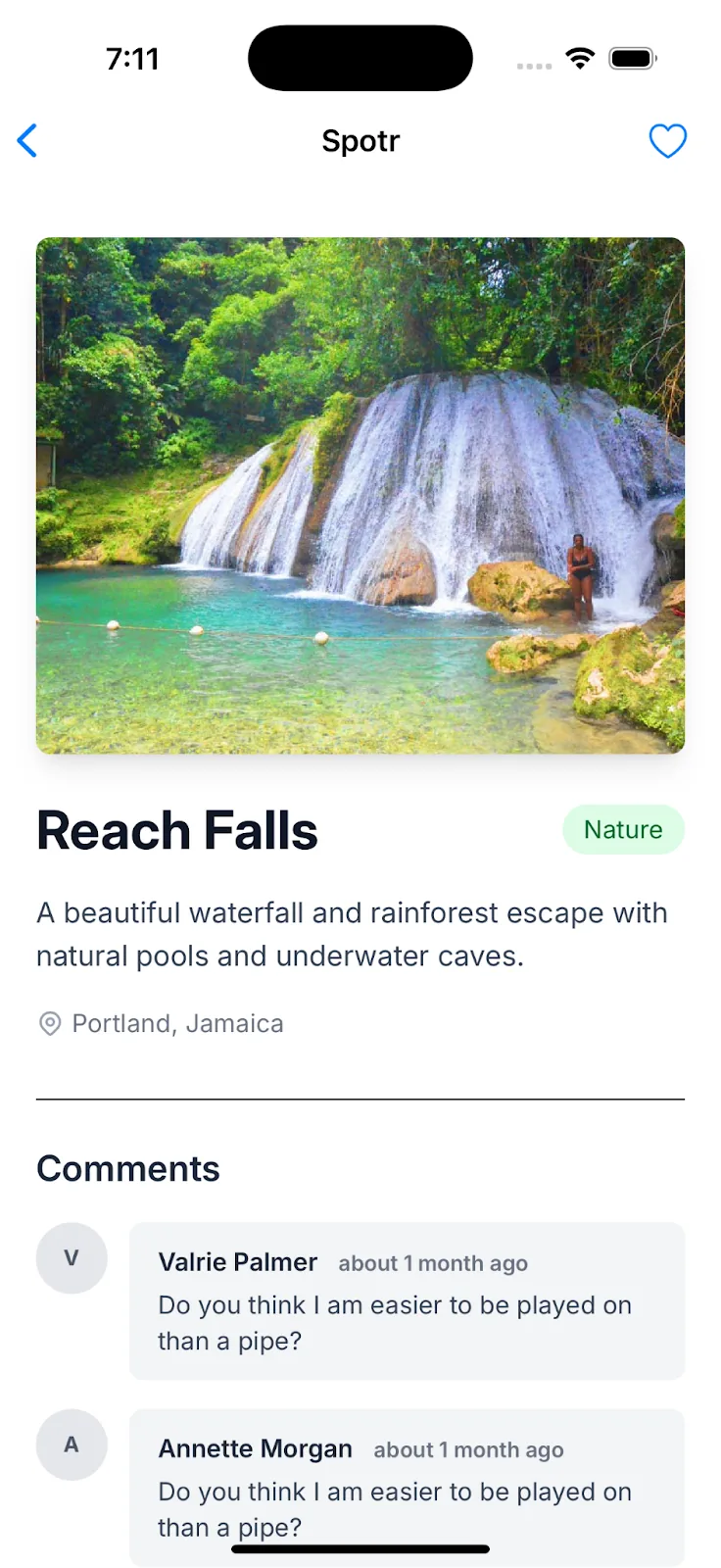
This adds the heart button to the right of the navigation bar. Rather than using Google Fonts for this iOS “heart” icon, we’re using SF Symbols which is Apple’s Native icon library for iOS and macOS and comes with Xcode. When pressed, it sends a reply to the WebView which results in the button being clicked.
Pro-tip: If you are running the app in a Simulator, you can open up Safari and go to Develop -> [Simulator] -> [App] to inspect the app's webview as you would in a browser.
Next, we need to add our component to the HotwireNative configuration. We do that by updating our AppDelegate file.
import HotwireNative

@main
class AppDelegate: UIResponder, UIApplicationDelegate {
    func application(_ application: UIApplication, didFinishLaunchingWithOptions launchOptions: [UIApplication.LaunchOptionsKey: Any]?) -> Bool {
        configureHotwire()
        return true
    }

    private func configureHotwire() {
        let localPathConfigURL = Bundle.main.url(forResource: "path-configuration", withExtension: "json")!
        let remotePathConfigURL = Spotr.current.appendingPathComponent("api/v1/configurations/ios.json")

        Hotwire.loadPathConfiguration(from: [
            .file(localPathConfigURL),
            .server(remotePathConfigURL)
        ])

        HotwireNative.registerBridgeComponents([
          HeartComponent.self
        ])

        // Set configuration options
        Hotwire.config.backButtonDisplayMode = .minimal
        Hotwire.config.showDoneButtonOnModals = true
#if DEBUG
        Hotwire.config.debugLoggingEnabled = true
#endif
    }
}
In our AppDelegate we register our HeartComponent with HotwireNative bridge components. We're also setting some configuration options for our app. The backButtonDisplayMode is set to .minimal which hides the back button text and only shows the back arrow. The showDoneButtonOnModals is set to true which shows a "Done" button on modals. Finally, we set debugLoggingEnabled to true which logs debug information to the console. You can remove this line when you're ready to ship your app.
How do you send data from the native app back to the web page?#
Reply with data. The native component replies to the event it received and passes a value along: reply(to:with:) on iOS with an Encodable struct, and replyTo(event, data) on Android with a serializable class. The callback you passed to send() runs with the reply message and reads the value from message.data.
This post's closing paragraph lists push notification tokens among its uses. A token is a value the native side can hand back to the page, and a reply with data is one way to get it there. Here is the round trip, as the web library's source (bridge_component.js and bridge.js) runs it:
send()hands the bridge your component name, event and data. The bridge gives the message an id when it goes out.send()also addsdata.metadata.urlwith the page's address, so the app can deliver the message to the right screen. A message sent before the native side is ready waits in a queue and goes out when it connects.- The native component gets the message in
onReceive. It keeps the last message it received for each event name. - The reply carries the same message id, so the bridge runs the callback stored under that id.
The native side has three ways to reply:
| Reply | iOS | Android |
|---|---|---|
| Echo the message, as this post's heart does | reply(to: "connect") | replyTo("connect") |
| Send new data | reply(to: "display", with: data) | replyTo("display", data) |
| Send a received message you changed | reply(with: message) | replyWith(message) |
The web side reads the value in its callback. This code is modeled on the official demo's menu controller. That controller also sends a source rectangle from getBoundingClientRect(), which the iOS menu component requires in the message:
this.send("display", { title, items, source }, message => {
  const selectedIndex = message.data.selectedIndex
  const selectedItem = new BridgeElement(this.itemTargets[selectedIndex])
  selectedItem.click()
})
The demo's native menu components reply with the tapped item's index, in a type called SelectionMessageData on both platforms, a Swift struct on iOS and a Kotlin data class on Android. One component can also send several events. The demo's form controller sends submitDisabled and submitEnabled with no callback at all.
The native side has lifecycle hooks as well. The iOS BridgeComponent offers onViewDidLoad, onViewWillAppear, onViewDidAppear, onViewWillDisappear and onViewDidDisappear. The Android BridgeComponent offers onStart and onStop. Since hotwire-native-bridge 1.2.2, released August 21, 2025, the web component calls connect() again on the native:restore event. That lets the native side rebuild its button.
Why doesn't my bridge component connect?#
If the controller never connects, check three things: the element is on the page, Stimulus loaded the file as bridge--heart, and the names and registration match. This post puts the file at app/javascript/bridge/heart_controller.js; the default Rails setup loads controllers from app/javascript/controllers, so move the file to app/javascript/controllers/bridge/ or register the controller by hand. The AppDelegate code above calls HotwireNative.registerBridgeComponents; in the current hotwire-native-ios library the call is Hotwire.registerBridgeComponents([HeartComponent.self]). The static component, the native component's name and the name you register must be the same string. Since hotwire-native-bridge 1.1.0, released March 12, 2025, the controller does not even load unless the app's user agent lists the name. On Hotwire Native Android 1.4.0 and later, a page from an untrusted origin is a separate problem: the bridge does not load for that page and replies do not arrive.
Check each row of this table, top to bottom:
| Symptom | Check |
|---|---|
| Controller never connects | In the web inspector console, navigator. |
| Registered, but silent on iOS | Check that the message data decodes into your MessageData struct. Its field names and types must match what send() passed, or message.data() returns nil. Then check that the destination is a UIViewController. In the iOS guide's example, onReceive returns early when there is no view controller, and addButton returns early when the data does not decode. Set debugLoggingEnabled to see messages arrive. The iOS guide registers components in AppDelegate.swift, which makes sure Hotwire is configured before the first URL is routed. |
| Registered, but silent on Android | Check that the message data decodes into your MessageData class, because its field names and types must match what send() passed, and that the toolbar exists. Then check the origin. Since Hotwire Native Android 1.4.0, released November 3, 2026, the app checks a page's origin before the page can reach native code. By default it trusts the origins of your NavigatorHost start locations. A different scheme, host or port counts as a different origin. |
| Callback never runs | With reply(to:) or reply(to:with:) on iOS, or replyTo(event) or replyTo(event, data) on Android, the event must be one the component received. If no message for that event was received, the call logs a warning and reports false. |
Turn on the logs next. On iOS, set Hotwire.config.debugLoggingEnabled = true. The iOS configuration docs say it logs bridge elements connecting, disconnecting, receiving and sending messages. On Android, set Hotwire.config.logger.logLevel = HotwireLogLevel.DEBUG inside an if (BuildConfig.DEBUG) check. The Android configuration docs list NONE as the default level, so nothing logs until you change it.
Then inspect the web view itself. On iOS, use the Safari pro-tip above. Hotwire Native iOS makes its web views inspectable in debug builds on iOS 16.4 and later. WebKit's guide says the isInspectable property defaults to false, and that simulators always have Web Inspector on. On a physical iPhone or iPad, turn on Web Inspector in Settings, under Safari, Advanced. On Android, set Hotwire.config.webViewDebuggingEnabled = BuildConfig.DEBUG, which turns on WebView debugging. Then open chrome://inspect in desktop Chrome, as Chrome's WebView debugging guide describes.
If the app cannot load your Rails page at all, the problem sits before the bridge. Part 1 of this series covers that setup, including the address an Android emulator uses to reach your machine.
Awesome! Now we have a native heart button on both Android and iOS. By now you should be able to see how easy it is to create BridgeComponents and should be thinking of all the other places you can use this in your app. In my own apps, I've used them to store push notification tokens, handle sharing, and even for authentication. I'll leave those as an exercise for you to explore. You can also try changing the primary color from the default blue to another color. In the next post, we'll take a look at how we can implement a native authentication flow with Hotwire Native. Until then, happy coding!
The Gnar Company builds with Rails, Hotwire and React, and it picks the tools for each project.